

As PC hardware continues to evolve and modern games relentlessly chase higher levels of visual fidelity, striking the right balance between image quality and performance is becoming increasingly challenging—even on decently powerful rigs. DEATH STRANDING 2: ON THE BEACH, as a cutting-edge AAA release, would normally fall into that same category. However, the original DEATH STRANDING earned a strong reputation on PC for its excellent optimization, delivering smooth performance across a wide range of PC configurations thanks to the efficiency of Guerilla Games‘s Decima engine, which achieved great performance/visuals ratios — with games such as Horizon Zero Dawn and Horizon Forbidden West — even on consoles. With that track record in mind, expectations for the sequel were naturally high, as Kojima Productions — with considerable assistance from PC ports specialists and Sony Interactive Entertainment studio Nixxes Software — once again leveraged Decima’s proven strengths to deliver both stunning visuals and a technically polished experience on PC.
As such, the purpose of this guide is to provide you with insight into how DEATH STRANDING 2: ON THE BEACH behaves and runs on our test system, not to mention examine the visual and performance profile of the game’s graphical settings, and therefore establish a list of optimized graphics settings, which you can use to strike an optimal balance between performance and visual fidelity on your rig.
Technical Overview Of DEATH STRANDING 2: ON THE BEACH
Released on March 19, 2026, on PC via Steam and the Epic Games Store, DEATH STRANDING 2: ON THE BEACH is the highly anticipated sequel to Kojima Productions’s genre-defying action-adventure experience. Developed using Guerrilla Games’s Decima engine, the game once again places players in the boots of Sam Porter Bridges as he traverses vast, hostile landscapes in a post-apocalyptic world, reconnecting isolated communities through the chiral network. Built in collaboration with Nixxes Software for its PC release, this version brings a host of platform-specific enhancements, including unlocked framerates, ultrawide support, temporal upscaling/frame generation technologies, not to mention support for ray-traced reflections and ambient occlusion — a first for a Decima game.
Let’s begin by taking a look at the game’s system requirements:
As we can see from the detailed PC specifications, DEATH STRANDING 2: ON THE BEACH adopts a notably scalable approach to hardware requirements, spanning a wide spectrum of systems. On the lower end, the game can run at 1080p 30 FPS on modest configurations such as a GTX 1660 paired with a 6-year-old entry-level quad-core CPU, while lower mid-range systems targeting 1080p 60 FPS or 1440p 60 FPS step up to GPUs like the RTX 3060 or RTX 3070 alongside more capable processors. At the very high end, achieving a 4K 60 FPS experience calls for powerful GPUs such as the RTX 4080 or RX 9070 XT, highlighting a clear and well-defined scaling path across presets. This broad range of requirements, combined with support for modern temporal upscaling and frame generation technologies, strongly suggests that the game is designed to accommodate everything from older PCs to cutting-edge rigs without compromising its visual ambition.
The game’s initial loading screen didn’t explicitly mention the compilation of PSOs (shaders), but from the CPU utilization stats that we pulled up, it was clear that the game was compiling some PSOs in its initial loading screen. This was further evidenced by the fact that clearing the shader cache, then relaunching the game, caused the same spike in CPU usage, alongside a moderately longer loading screen. However, since this is a Nixxes Software game, the game doesn’t actually pre-compile all PSOs before gameplay, and instead asynchronously compiles the rest of them during gameplay on spare CPU cores/threads, which should work well enough as a solution to the shader compilation Stutter Struggle that’s been plaguing PC gaming, as long as your CPU is up to snuff.
The game also has some technical quirks that we feel are worth mentioning. First — and like many PC ports of Sony Interactive Entertainment games before it — DEATH STRANDING 2: ON THE BEACH seems to put a great amount of stress on the PCI-Express bus that houses PC graphics cards/GPUs. We’ve measured up to 20 GB/s of either reception/transmission bandwidth between our test system’s CPU and GPU. Further, tech YouTuber Mostly Positive Reviews performed a test that showed tangible double-digit performance gains on his RTX 5070 GPU, by going from PCIe 4.0 to 5.0 in his system BIOS settings:
Another peculiar technical issue that we noticed — and which may well be related to the aforementioned high PCIe bandwidth usage issue — is that the game seems to incur a tangible hit on GPU performance during movement, which is not something that happens in many other games, especially when the rendered scene (assets, geometry, effects, characters, etc.) stay the same:
Unfortunately, the game’s technical problems don’t stop here, as we also noticed some issues with regard to LoD (Level of Detail) of distant objects (such as rocks) and their textures. Even at the highest settings, some of these distant objects simply look rather poor, and we were left wondering whether this could be a bug or simply a limitation of the Decima engine — or at least the version of it that’s employed in this game.
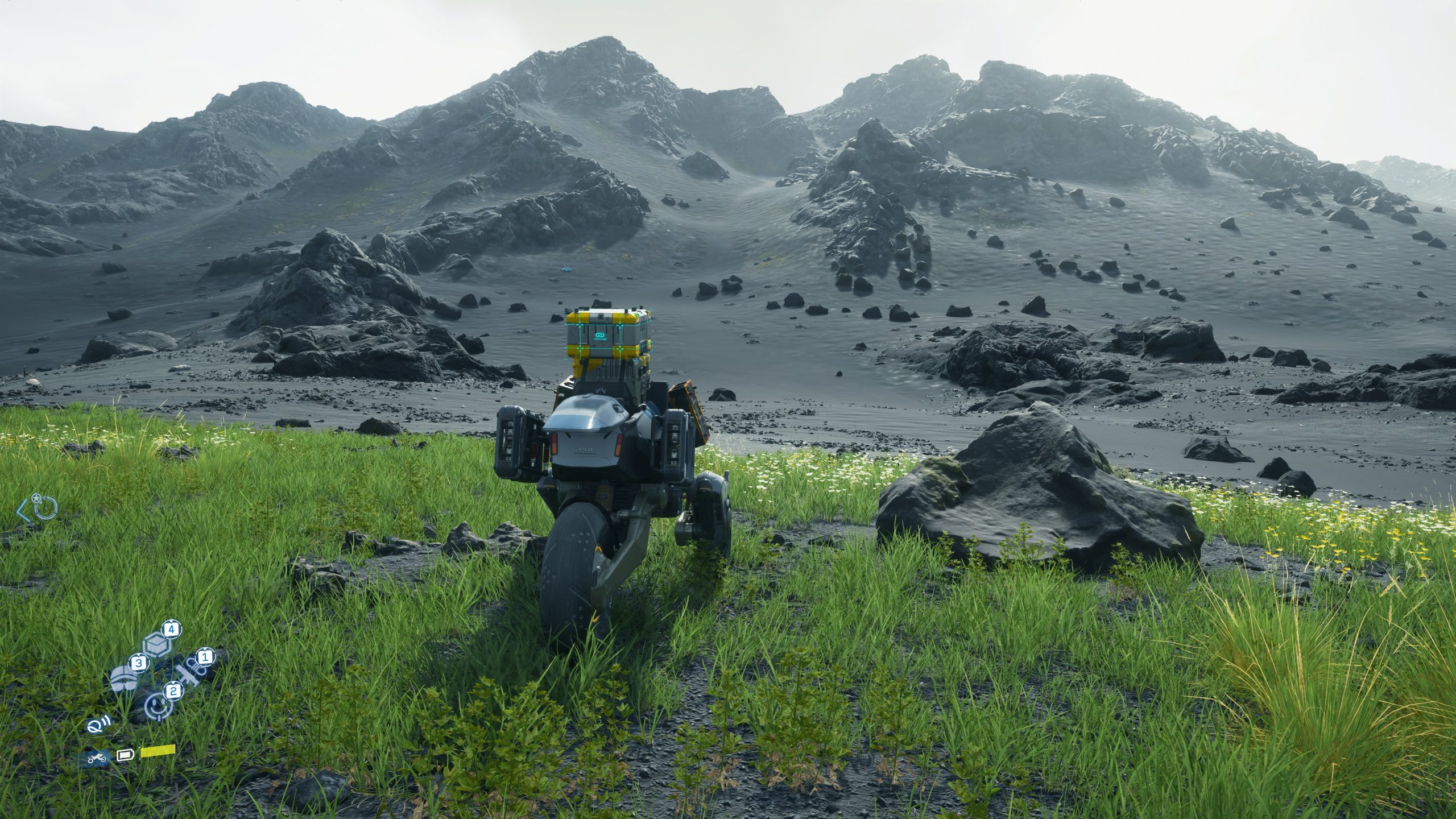
Also, it’s worth mentioning that the game’s cutscenes are locked to 60 FPS, though you can use Frame Generation/Multi Frame Generation technologies from NVIDIA, AMD, and Intel to double, triple, or even quadruple the perceived smoothness of the cutscenes on high refresh rate monitors.
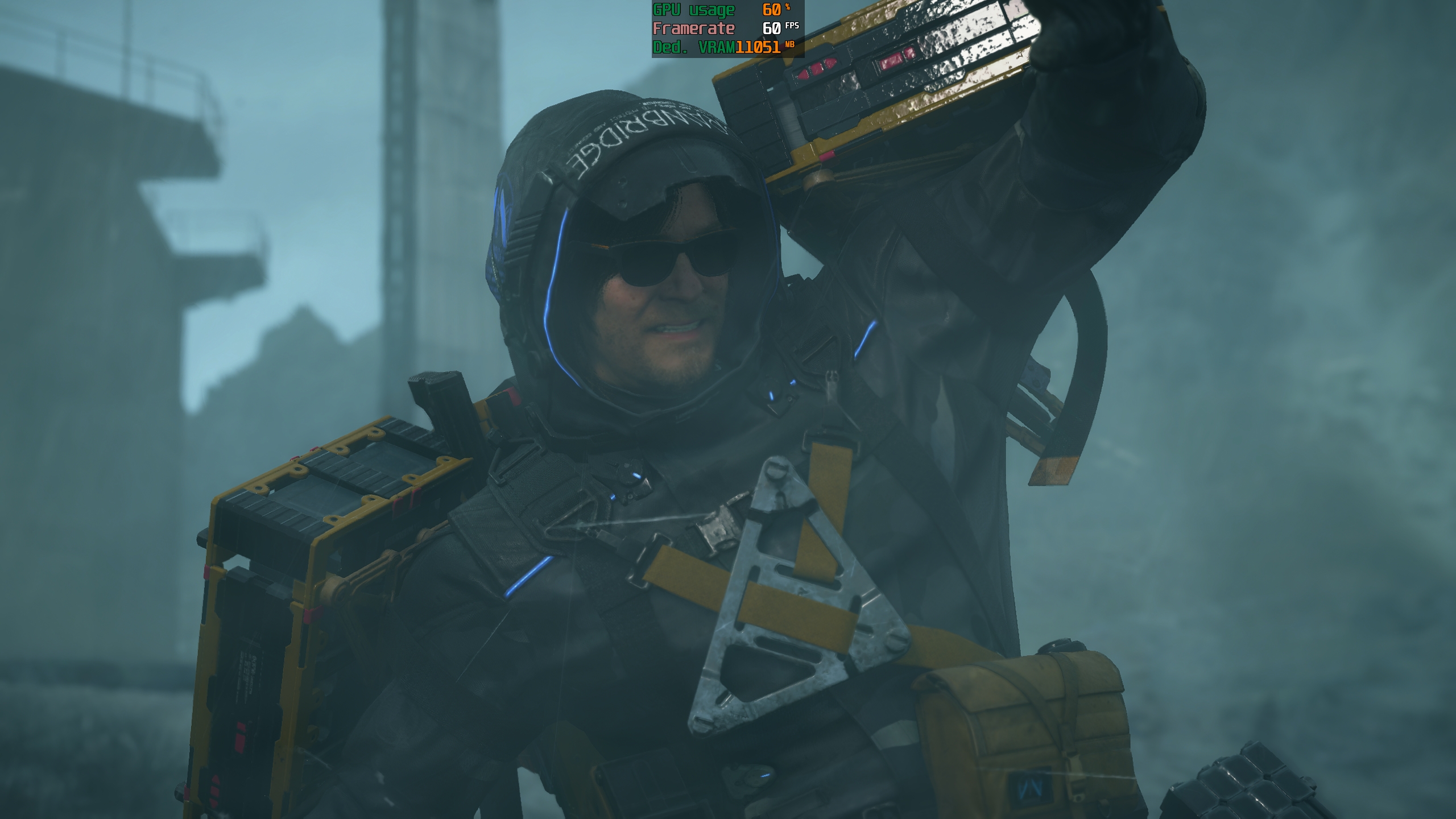
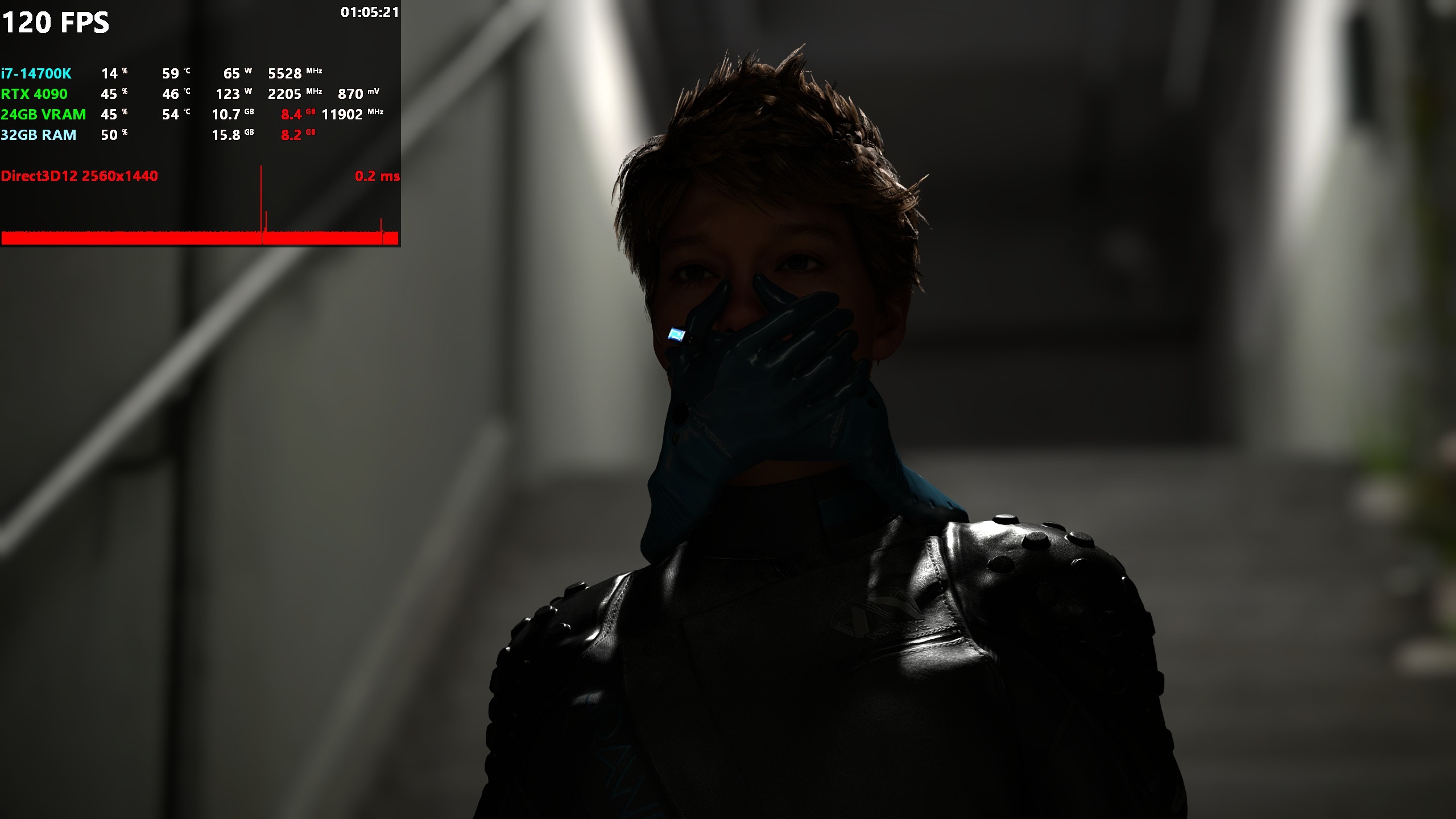
Another issue with cutscenes is that when enabling DLSS Frame Generation/Multi Frame Generation (FSR FG fortunately seems exempt from this issue), some intermittent stutters — in the form of large and distracting frame time spikes — can be occasionally observed. As of the latest game update at the time of writing of this article, this issue is still unfortunately unresolved.
A Deep Dive Into DEATH STRANDING 2: ON THE BEACH‘s Graphics Settings
In this section, we will be checking out the various graphics settings in DEATH STRANDING 2: ON THE BEACH in detail, using comparison videos that should hopefully accurately portray both the graphics and performance of each setting’s various quality levels, thus allowing us to determine which settings strike the best visuals/performance balance, which is the basis for establishing optimized graphics settings in this game, or any other game for that matter.
Further, the graphics settings comparisons in this section have all been made on a system with the following relevant specs:
- CPU: Intel Core i7-14700K;
- RAM: 32 GB DDR5-7000 CL34;
- Storage: 2 TB PCIe 4.0 NVMe SSD;
- GPU: NVIDIA GeForce RTX 4090 24 GB;
- Operating System: Windows 11 25H2;
- All system firmware, drivers, BIOS, and OS updates were fully applied before testing.
In addition, all of the comparisons were done under fully GPU-limited scenarios at a resolution of 1440p with the game’s proprietary upscaling/anti-aliasing solution that’s called PICO (short for Progressive Image Compositor) set to Native AA mode. Furthermore, please be aware of the fact that lowering GPU-heavy graphics settings will not affect the game’s performance if the rest of your system isn’t powerful enough to keep up with your GPU.
With that said, let’s take a look at the game’s Display Settings and Graphics Settings menus:
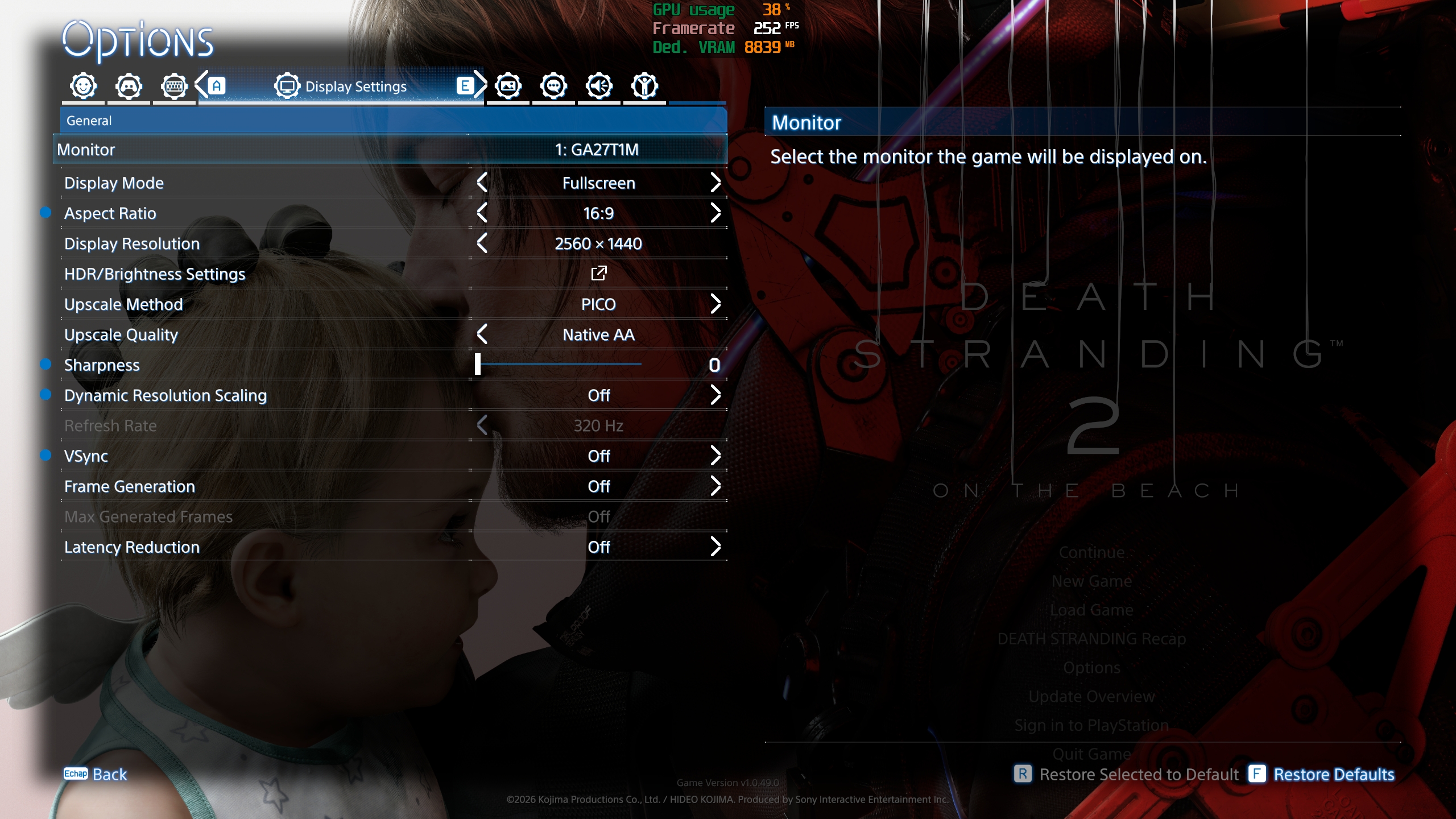
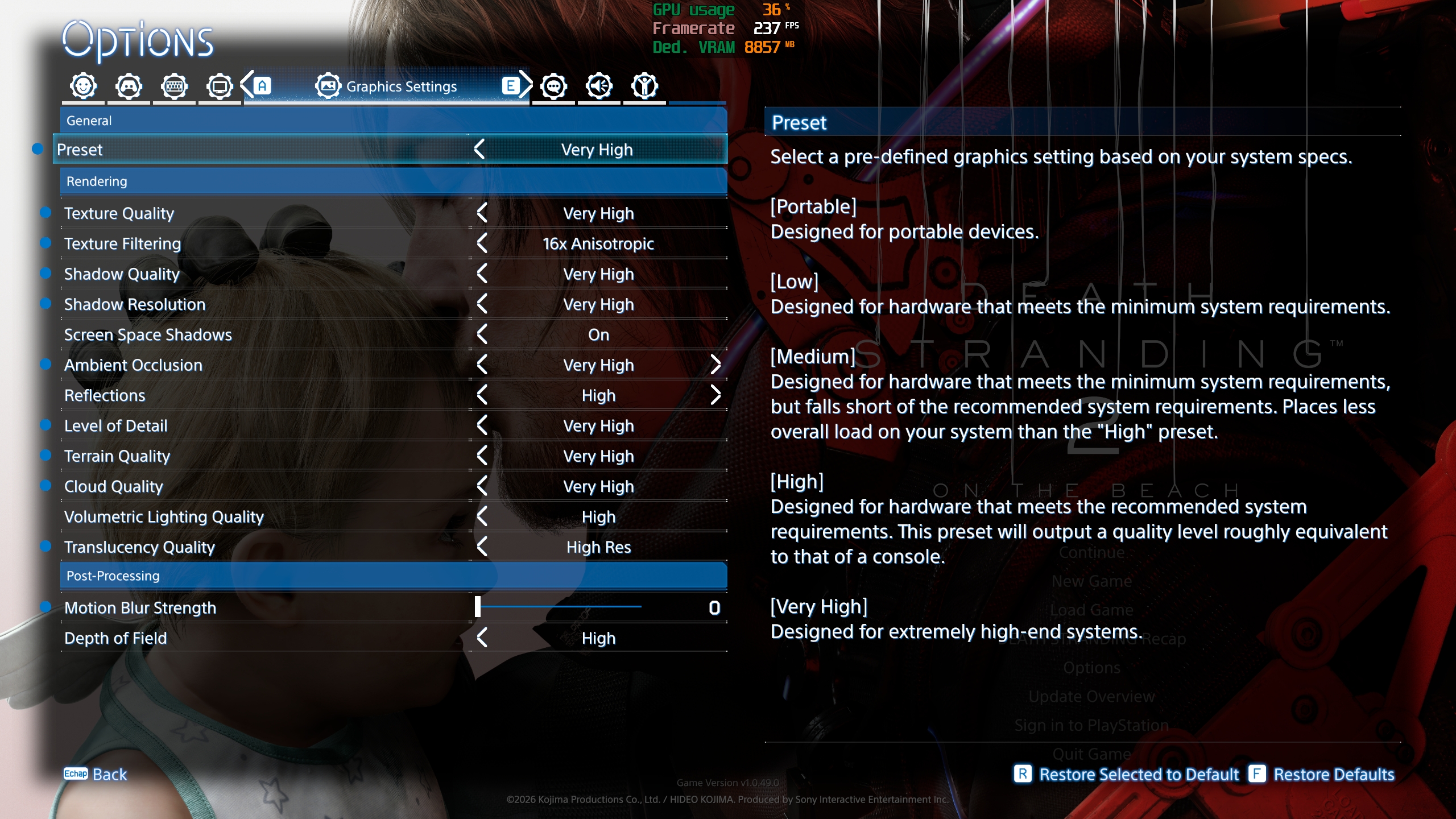
Let’s break down what each menu has in terms of settings:
- The Display Settings menu: This section has classic graphics settings to control display mode, brightness, resolution, VSync, HDR, etc. In addition, it also allows changing temporal upscaling and frame generation settings. Another interesting option in this menu is the Dynamic Resolution Scaling option, which is useful for targeting fixed frame rates by dynamically altering the rendering resolution of the game.
- The Graphics Settings menu: This menu contains the main graphics settings that control the rendering fidelity of each graphical effect that the game has on offer.
In what follows, we will be taking a deep dive into the performance/visuals profile — by analyzing comparison videos — of every relevant graphics setting that the game has on offer.
Graphics Presets Comparison
First of all, we begin by taking a look at how the game’s visuals/performance ratio scales coarsely with its predetermined graphics presets, from Portable — which is meant for the lowest-end/mobile devices — to Very High, which is meant to be used in the highest-end PCs. Please be aware of the fact that graphics presets don’t enable the ray tracing options for Ambient Occlusion and Reflections.
Upscale Method
This setting allows players to utilize temporal upscaling technologies in order to improve performance, at a given cost to visual fidelity. Our recommendations for this setting depend upon your GPU vendor and model: Users of NVIDIA GeForce RTX GPUs should obviously use DLSS Super Resolution. NVIDIA pre-RTX GPU and AMD pre-RDNA4 GPU owners should use PICO, and AMD RDNA4 GPU users should use FSR 4+/ML Upscaling. Finally, Intel Arc GPU owners should use XeSS.
Note: In the above comparison, we mistakenly chose the Quality upscaling mode for Intel XeSS — which corresponds to 58% per-resolution axis — rather than the more adequate Ultra Quality upscaling mode, which corresponds to 67% per-resolution axis, and is a more apt comparison to the Quality upscaling modes of other temporal upscalers. We sincerely apologize for this mistake!
Upscale Quality
This setting controls the internal resolution that’s to be used alongside your chosen temporal upscaling method, as set in the Upscale Method setting. Our recommendations for these settings are defined by the table below:
| Output Resolution / Framerate Target | Upscale Quality |
| 1080p (Full HD) | Quality |
| 1440p (Quad HD) | Balanced |
| 2160p (Ultra HD) | Performance |
| 7360p (8K) | Ultra Performance |
| Fixed framerate target | Dynamic Resolution Scaling |
Texture Quality
This setting controls the resolution of the game’s textures. We recommend Low for GPUs with 6 GB of VRAM, Medium for GPUs with 8 GB of VRAM, High for GPUs with 10 GB of VRAM, and Very High for GPUs with 12+ GB of VRAM. Please note that enabling ray tracing or increasing the game’s rendering resolution will inevitably increase its VRAM usage, and it will thus require even more VRAM capacity than previously said, in order to guarantee a stutter-free experience.
Texture Filter Quality
This setting should control texture filtering quality. However, we noticed that it is currently bugged and does not actually work as it should. Still, on the chance that this setting gets fixed in a future game update, we recommend setting it to 16x Anisotropic, as most modern GPUs can cope with this option just fine. We also recommend enabling X16 anisotropic filtering mode via your GPU driver’s software interface for the game’s driver profile.
Shadow Quality
This setting should seemingly control the “quality” of the game’s shadow maps. However, not only is this setting’s definition ambiguous, but we also failed to spot a meaningful difference in both visuals and performance in many scenes with multiple shadows. But just in case this setting has a bigger-than-expected impact on performance in some future scene (or game update), we recommend setting it to High as a safe option.
Shadow Resolution
As its name suggests, this setting seems to control the resolution of the game’s shadow maps. We recommend the High option. Incidentally, we also noticed that this setting seems to scale with the rendering resolution of the game, so in case the game’s shadows look somewhat less defined than they should be, then consider either increasing the game’s internal resolution or setting a higher value of this setting.
Screen Space Shadows
As its name suggests, this setting toggles the enablement/disablement of screen space shadows, which are shadows that are cast by objects that are present in the game’s screen space, such as shrubs and foliage. Since this setting meaningfully enhances the realism of the game and has a relatively small performance impact, we recommend leaving it ON.
Ambient Occlusion
This setting attempts to simulate soft, diffuse shadows in creases, cracks, and corners where ambient light is blocked. We recommend High as an acceptable compromise between fidelity and performance.
Reflections
This setting adjusts the fidelity of the reflections that are visible on the game’s various reflective surfaces, such as bodies of water and liquids, and other wet surfaces. This setting also has a couple of ray tracing-enhanced options, which are both an enhancement (rather than a complete replacement) of the screen-space reflections-based High and Very High settings. Due to the heavy nature of the Very High and ray-traced settings, we recommend putting this setting on High.
Level of Detail
This setting controls the level of detail of distant game objects, such as cars, rocks, poles, and various other geometric assets that the game has to offer. Even though the game may not necessarily have the best LoDs out of modern games, we still recommend setting Level of Detail to High, as we feel it strikes an optimal point in the visuals/performance balance.
Terrain Quality
As its name suggests, this setting controls the quality of the game’s terrain rendering. We recommend Medium as a balanced compromise between visuals and performance.
Cloud Quality
This setting allows the adjustment of the fidelity of the volumetric cloud system that the game employs. We recommend setting it to Medium.
Volumetric Lighting Quality
This setting controls the quality of lighting on volumetric effects such as fog, dust, and smoke. We recommend setting it to Medium.
Translucency Quality
This setting seems to control the rendering resolution of the game’s transparent objects, such as particle systems. As the above video demonstrates, this setting can have a huge performance impact when certain translucent elements and particles — such as sandstorms — are close to the camera. Therefore, we strongly recommend setting it to Default.
Motion Blur Strength
As its name suggests, this setting controls the strength of the motion blur post-processing effect. We have no recommendations with regard to this setting, as it not only depends on user preference, but it also has a relatively negligible impact on GPU performance.
Depth of Field
Depth of field is a post-processing setting that simulates camera lenses by blurring the foreground or background, keeping only the focal point sharp. It also didn’t seem to make a huge difference in both visuals and performance, so we recommend leaving it on High.
Optimized Graphics Settings & Tips On How To Get The Best Experience in DEATH STRANDING 2: ON THE BEACH On PC
Optimized graphics settings
Wrapping it all up, here are the final, recommended optimized graphics settings for DEATH STRANDING 2: ON THE BEACH, which we feel strike an optimal balance in terms of both performance and visuals for this game:
| Graphics Setting | Optimized Value |
| Upscale Method | Depends on GPU vendor and model: – NVIDIA RTX GPUs: DLSS SR – NVIDIA pre-RTX GPUs and AMD pre-RDNA4 GPUs: PICO – AMD RDNA4 GPUs: FSR ML Upscaling – Intel Arc GPUs: XeSS |
| Upscale Quality | Depends on output resolution/framerate target: – 1080p: Quality – 1440p: Balanced – 4K: Performance – 8K: Ultra Performance – Fixed FPS target: Use Dynamic Resolution Scaling |
| Texture Quality | Depends on GPU VRAM capacity: – 6 GB: Low – 8 GB: Medium – 10 GB: High – 12+ GB: Very High Note: enabling ray tracing/and or increasing the rendering resolution further increases VRAM capacity pressure |
| Texture Filtering | x16 Anisotropic (seems to be currently bugged — Force x16 AF from your GPU driver software interface) |
| Shadow Quality | High (doesn’t seem to impact visuals/performance) |
| Shadow Resolution | High (also scales with render resolution) |
| Screen Space Shadows | ON |
| Ambient Occlusion | High |
| Reflections | High |
| Level of Detail | High |
| Terrain Quality | Medium |
| Cloud Quality | Medium |
| Volumetric Lighting Quality | Medium |
| Motion Blur Strength | Depends on player preference |
| Translucency Quality | Default |
| Depth of Field | High (no difference between Medium and High in visuals/performance) |
With our optimized graphics settings established, let us look at how they improve performance — at a minor cost in terms of visual fidelity — on our test system via a demanding outdoors scene:
As we can see from the above comparison video, our optimized graphics settings result in respectable 23%/5% increases in average framerate and 1% lows respectively, versus the maximum graphics settings (without ray tracing), and whooping 84%/56% increases in average framerate and 1% lows respectively, versus the maximum graphics settings (with ray tracing). Furthermore, we strongly recommend opting to combine our optimized graphics settings with a suitable temporal upscaling technology and mode combo, in order to truly maximize the game’s performance/visuals ratio. Also, enabling frame generation should also be a great boon to help you take advantage of a high refresh rate monitor, should you have one, of course, and should your base framerate be consistently hitting 60 FPS, with decent frametime consistency to boot.
Extra tips to get the most out of your DEATH STRANDING 2: ON THE BEACH experience
Thankfully, DEATH STRANDING 2: ON THE BEACH seems to be a (mostly) optimized PC release, so there really isn’t much else we can say to help you further improve your technical experience with the game. Still, we’d like to share a few extra tips that we think may be helpful for you, as a player.
Firstly, users wanting to further enhance their HDR experience with the game can download the RenoDX mod, which will “partially rewrite the game’s DX12 post processing code to fix issues in tonemapping, color grading, and the appearance of UI in HDR”, according to the mod’s description.
Secondly, users may want to check the PCI-Express speeds that their GPUs are running at, given that — as we previously showed — the game seems to be very sensitive to PCIe speeds. Therefore, ensuring that your GPU is running at its maximum supported PCIe version is paramount to obtaining a great experience in the game.
Lastly, users wanting to customize and tweak their game beyond the scope that’s allowed by the developers could opt for downloading modder Lyall‘s DeathStranding2Fix mod, which allows for adjusting gameplay FoV (Field of View), disabling depth of field, and cutscene pillarboxing, among other things.
Final Words
After extensive testing, we can confidently say that DEATH STRANDING 2: ON THE BEACH delivers a strong PC performance profile, without any major stuttering or hitching issues. Thanks to the continued evolution of the Decima engine and the inclusion of modern features such as temporal upscaling and frame generation, players can further boost performance and smoothness without significantly compromising image quality. Even at higher settings, only the most demanding scenarios — such as maxed-out graphics settings with ray tracing at a 4K resolution — introduce noticeable performance dips, highlighting an overall well-balanced performance/visuals ratio.
Our findings align closely with early technical impressions from the gaming press, which describe the PC version as living up to the high expectations set by the original game’s excellent optimization, with some outlets noting that it “is as good as you would hope” given its predecessor’s reputation. While some technical issues are indeed present in the game currently, the overall experience remains highly polished and scalable. As a result, players with systems meeting or exceeding the recommended specifications can approach DEATH STRANDING 2: ON THE BEACH with confidence, knowing that it not only looks exceptional but also runs reliably well across a broad spectrum of PC configurations.
For more on DEATH STRANDING 2: ON THE BEACH, please check out our review of the game from this link!
This performance analysis was based on a Steam copy of DEATH STRANDING 2: ON THE BEACH provided by publisher PlayStation Publishing LLC.
Follow Wccftech on Google to get more of our news coverage in your feeds.
VIA: wccftech.com

